Get started
Quick start
Install FengSui on a NAS or computer with Docker, connect your router, and view signals within 10 minutes.
This is the shortest path: a machine that runs Docker, on the same local network as your Huawei router. For Synology Container Manager graphical setup, see Installation and upgrade.
Prerequisites
- A NAS or computer capable of running Docker and Docker Compose (Linux, macOS, or Windows), on either
amd64orarm64. - The router management address (usually
http://192.168.8.1) and administrator password. - This machine and the router must be on the same local network.
Warning
Entering the router administrator password incorrectly 3 consecutive times locks the router for a period. Verify the password in your browser before giving it to FengSui.
1. Download configuration files
Create a directory and download docker-compose.yml and .env.example from the repository:
mkdir -p ~/cpe-dash/data && cd ~/cpe-dash
curl -fsSLO https://raw.githubusercontent.com/cky008/cpe-dash/main/docker-compose.yml
curl -fsSL -o .env https://raw.githubusercontent.com/cky008/cpe-dash/main/.env.example
chmod 600 .env && chmod 700 data2. Set the encryption key
FengSui encrypts the router password, SMS messages, and settings before storing them in data/. Open .env and set DATA_ENCRYPTION_KEY to a sufficiently long random string:
# Generate a random key and copy it to DATA_ENCRYPTION_KEY= in .env
openssl rand -hex 32
Important
Save a backup copy of this key. If you lose it, the data in data/ cannot be recovered.
Then set two more variables in .env: TZ (timezone, such as Asia/Shanghai), and PUID / PGID (the user running the container, obtained by running id -u and id -g on this machine). You can leave everything else as is for now.
3. Start
docker compose pull          # Download the image (no source code required)
docker compose up -d
docker compose logs cpe-dash | grep "setup code"
The logs will show a one-time setup code (valid for 24 hours).
4. Open the console
Open http://<this machine IP>:18384 in your browser:
- Enter the setup code and set a login password for the console.
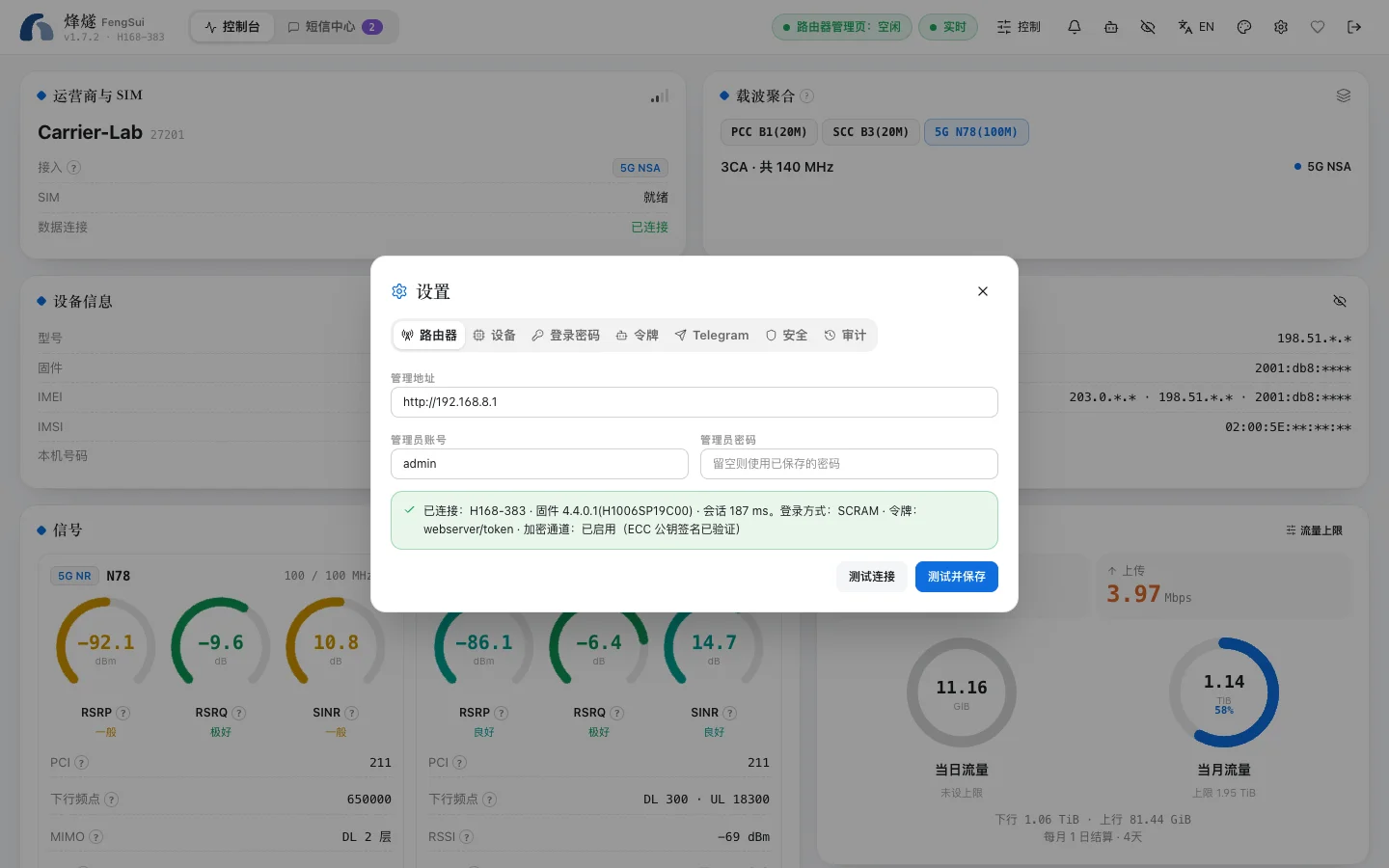
- Follow the setup wizard to enter the router address, administrator username (usually
admin), and password. FengSui tests the login first and saves only after a successful test. - Within seconds, the dashboard will display your signals, carriers, and traffic.
Next steps
- To receive SMS messages and alerts on your phone or Telegram: see Alerts and notifications.
- To lock bands or cells: read Band and cell locking first to learn how to avoid losing your connection.
- To access the console remotely: read Security and privacy first. Do not map the port directly to the public internet.
- To adjust more settings: see Configuration reference; each entry of
docker-compose.ymlis explained in Docker Compose file.