Use FengSui
Manage devices and access
See who is connected to your network, pause Internet access for a device, or set scheduled access hours.
FengSui uses the router's built-in Wi-Fi MAC filtering and parental controls. This is the same list found under Device Management on the router's own web page, so changes made on either side stay in sync.
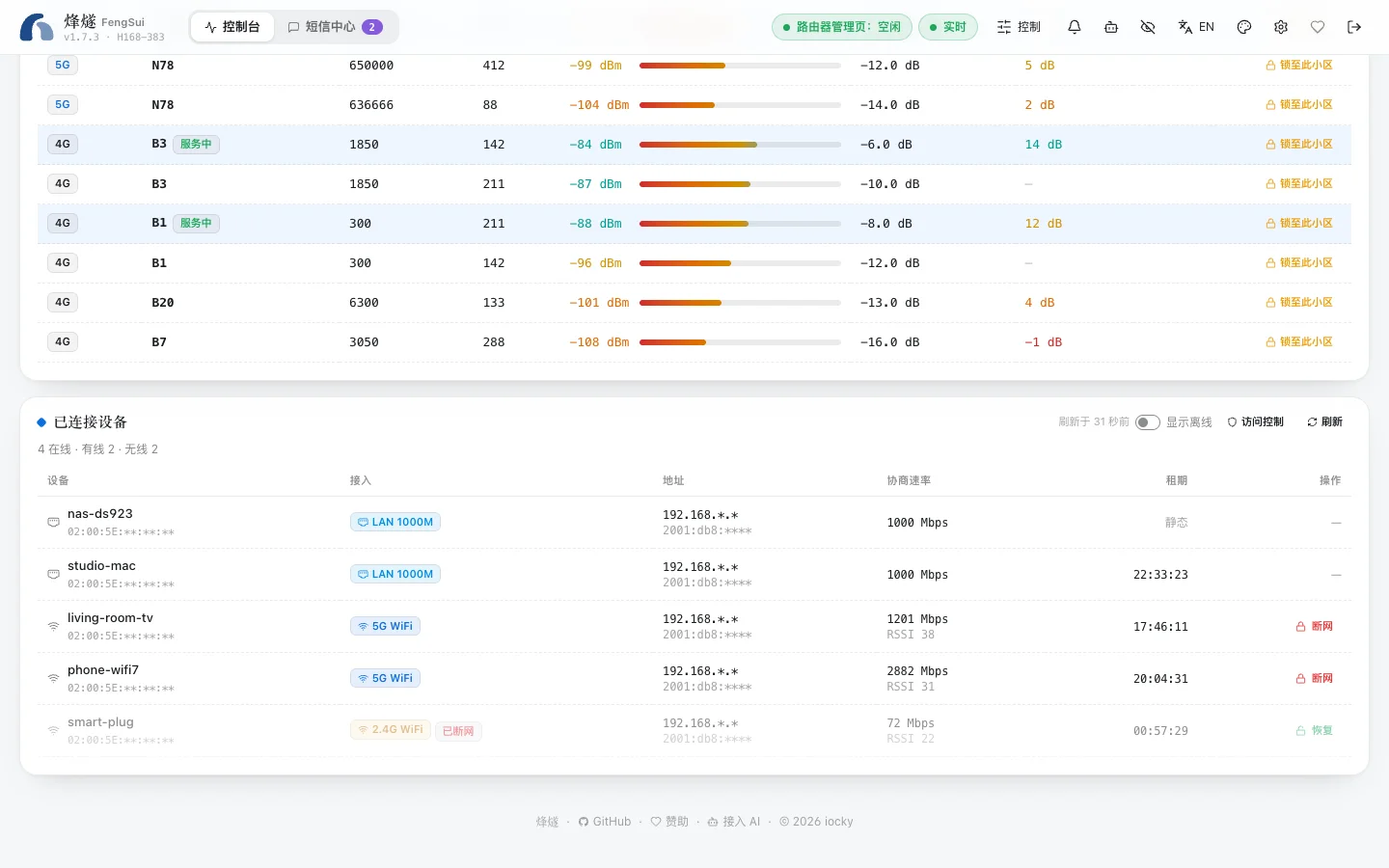
View devices
The Connected devices card at the bottom of the Dashboard lists all devices connected to the router:
- Connection type: wired (
LAN 1000M) or Wi-Fi (2.4G / 5G). - IPv4 and IPv6 addresses, negotiated link speed, and Wi-Fi signal strength.
- Remaining DHCP lease time.
Turn on "Show offline" to view devices that are currently offline.
Pause Internet access for a device
Clicking "Block" next to a Wi-Fi device adds it to the router's Wi-Fi blocklist, disconnecting it immediately. Blocked devices remain in the list; click "Restore" to reconnect them.
Note
You can currently pause only Wi-Fi devices. To manage wired devices, use the firewall on the router's own web page. The router firmware provides no API for per-device rate limiting, so FengSui does not offer rate limiting either.
Blocklists and allowlists
Every network adapter has a MAC address. With MAC filtering, the router decides whether to let a device connect to Wi-Fi based on this address [Huawei: Setting a Wi-Fi blocklist or allowlist on a CPE]. Note that smartphones can change their MAC addresses easily (many use randomized addresses for each Wi-Fi network by default), so MAC filtering is useful for home device management rather than security.
You can switch the Wi-Fi MAC filtering mode in the Access control drawer:
- Disabled: all devices can connect.
- Blocklist: devices on the list cannot connect.
- Allowlist: only devices on the list can connect. Use the selector to choose permitted devices before enabling.
The router stores up to 64 entries. The drawer shows how many slots are currently used.
Scheduled access hours
This uses the router's parental control feature [Huawei: Setting parental controls on a CPE]. You can set permitted online times per device: select the days of the week and choose time slots in 15-minute increments. Schedules can span across midnight (such as 22:00 to 07:00 the next day). If time slots overlap for the same device, FengSui warns you of the conflict.
Never get locked out
Every modification executes within a single login session: "read devices → read current list → plan changes → write → read back to verify". Two devices are never blocked:
- The machine running FengSui (the router identifies the device making the request).
- The device you are currently using.
If a planned change would disconnect either of them, FengSui refuses the change and explains why.