Get started
What FengSui is
A Huawei 5G router console running on your own NAS. Take two minutes to learn what it can and cannot do.
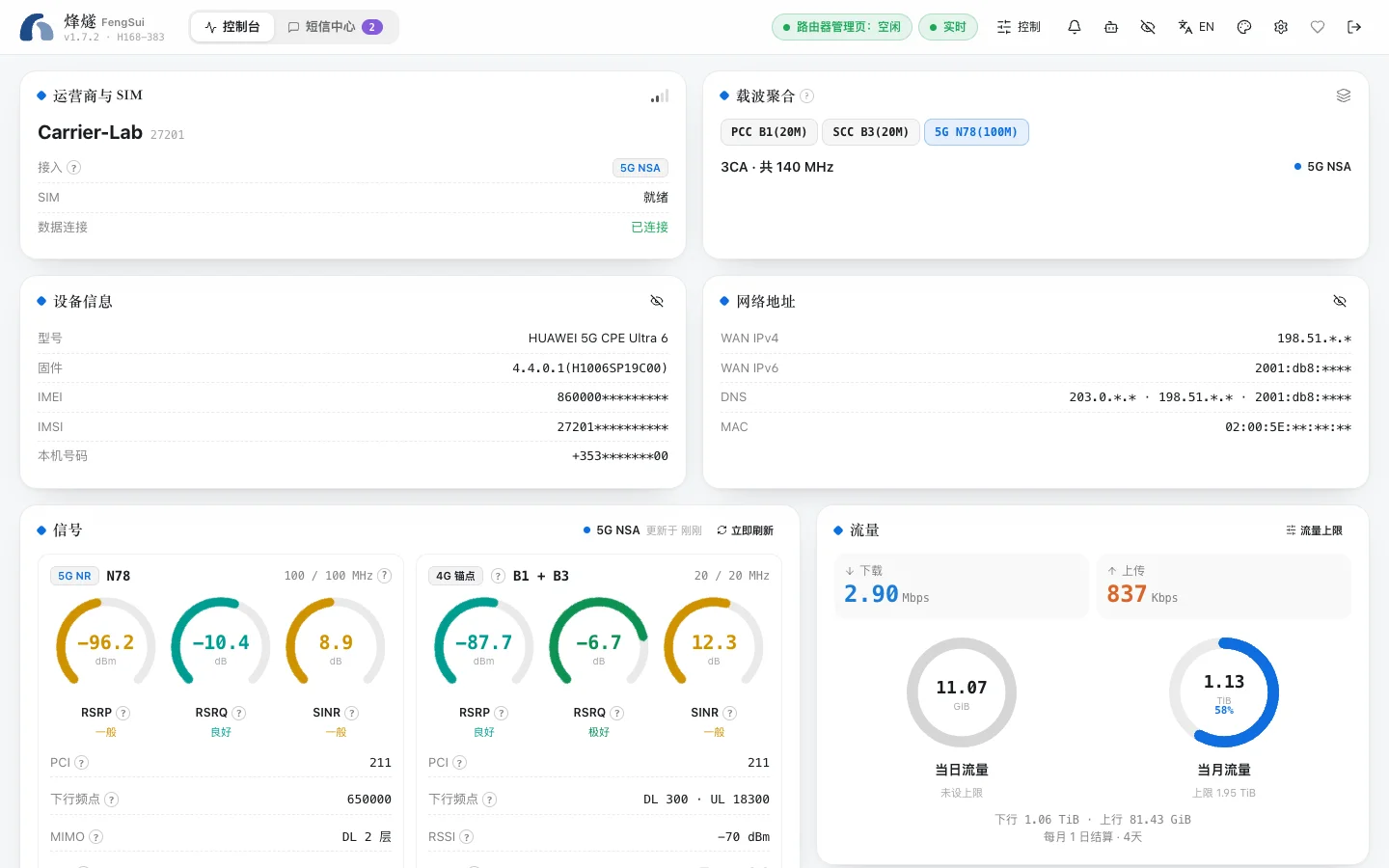
FengSui (repository name cpe-dash) is a web console that runs on your home NAS or computer to monitor and manage Huawei 5G routers (CPEs).
It brings scattered information from the router's own web page onto a single dashboard, adding features the router's own web page lacks: historical charts, alerts, Telegram notifications, threaded SMS views, and interfaces for AI agents.
What it can do
- Monitor signals: RSRP, SINR, modulation, transmit power, and the band and bandwidth of each 4G / 5G carrier, refreshing every 5 seconds, with 7 days of history.
- Lock bands and cells: Fix the router to specific bands or a specific cell. Preview before locking; if you lose connection after locking, you can set it to unlock automatically a few minutes later.
- Send and receive SMS: Threaded view, one-click verification code copying, and contacts. Messages are stored encrypted on your hard drive.
- Manage devices: See who is connected to your network and how; block an individual device from the internet, or set internet access schedules for it.
- Alerts and notifications: Get notified when the connection drops, signal degrades, the router restarts, or SMS storage is full. Forward notifications to Telegram or your own webhook.
- Connect AI agents: Built-in MCP server allows Claude, Cursor, and other tools to read signals and history; operations that modify the router are disabled by default.
Who it is for
- People who use a Huawei 5G router at home or in the office and want to monitor signals and optimize bands.
- People who have a NAS (Synology, QNAP, or custom Linux) or an always-on computer and know how to use Docker.
- People who want to forward SMS messages received by the router to their phone or Telegram.
Supported routers
FengSui is fully verified only on the Huawei 5G CPE Ultra 6 (H168-383, firmware 4.4.0.1). Other Huawei HiLink routers can usually connect as well, but work in read-only mode: you can view signals and SMS messages without changing router settings, unless you explicitly agree to enable experimental writes item by item in the console. For details, see Other Huawei models.
What it will not do
- Does not compete with you for the router. The router allows only one administrator logged in at a time. When you log in to the router's own web page, FengSui steps aside automatically and resumes after you log out.
- Does not lock you out of the router. Entering the wrong password 3 consecutive times locks the router. FengSui stops immediately on its first login failure and waits for you to fix it in the console; it never retries automatically.
- Does not upload data. FengSui connects to no cloud services and collects no usage data. Notifications are sent only to Telegram or webhooks that you configure yourself.
- Does not bypass carrier restrictions. It uses only features already available on the router's own web page and does not alter RF parameters or transmit power.
Try before deciding
If you do not want to install it yet, open the live demo: the full console runs in your browser with simulated data. Every button is clickable, and refreshing resets everything.
When you are ready, follow Quick start to set it up.