Use FengSui
Lock bands and cells
Fix the router to specific bands or a specific cell, and learn how to automatically restore Internet access if a lock fails.
The router normally decides which band to use and which cell to connect to on its own, but its choice is not always the fastest. Band and cell locking lets you make that decision for it.
Warning
Locking changes how the router connects to the operator network. Only lock to networks and bands that you are legally authorized to use, and follow local regulations and your operator's terms of service.
Why lock
Operators transmit signals across different bands (such as B1 and B3 on 4G, or n78 on 5G). Lower frequencies travel farther, while higher frequencies provide faster speeds. Each cell is a coverage area facing a specific direction from a base station [3GPP TS 36.101] [3GPP TS 38.101-1]. For detailed explanations of these terms, see Bands, carriers, and cells.
By default, the router picks the band and cell with the strongest signal, but the strongest signal does not always mean the fastest speed:
- The strongest cell might be congested with many users.
- Lower frequencies have stronger signals but slower speeds, while higher frequencies are faster but have weaker signals.
- The router might switch back and forth between two cells, causing an unstable connection.
Band locking restricts the router to only the bands you select, such as 5G n78 and 4G B3, avoiding congested or slow bands. Cell locking goes a step further by fixing the router to a specific cell, which is useful when you already know which base station is fastest and most reliable [Huawei: Slow Internet access with a SIM card (band selection)].
The trade-off is that the router can no longer switch to other bands or cells on its own. If that band or cell degrades, undergoes maintenance, or shuts down, you might lose Internet access. Observe performance on the console for a few days to confirm that the target cell is actually better before locking.
Lock a band
- Open the Controls drawer in the top right corner.
- Under 4G (LTE) and 5G (NR), select the bands you want to keep. You can only choose bands supported by this router.
- Click "Lock". The confirmation dialog lists the changes and explains whether automatic rollback will trigger if the connection drops.
Band locks apply to both 5G SA and NSA. To restore normal operation, click "Unlock" to return to "All bands".
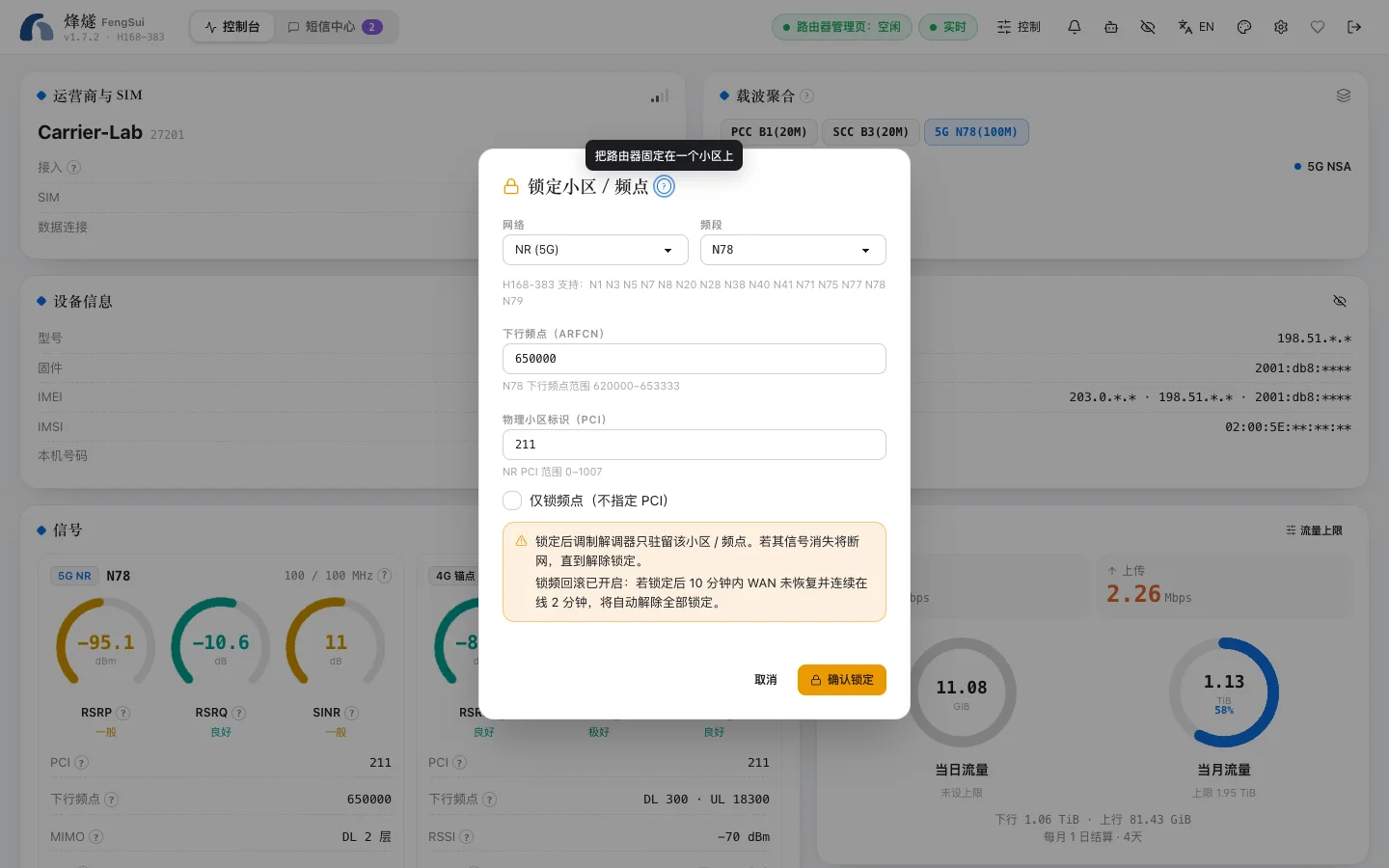
Lock a cell
Cell locking fixes the router to a specific base station sector. A cell is identified by its band, frequency, and PCI.
- In the Nearby cells table on the Dashboard, find a cell with good signal and click "Lock to this cell", or fill in the details manually in the Controls drawer.
- FengSui only allows locking to cells that have already been observed: the current serving cell, carrier aggregation cells, or cells seen in the latest neighbor scan. This prevents connection drops caused by mistyped numbers.
- You can also select "Frequency only (no PCI)" to lock only the frequency.
What to do if you lose Internet access after locking
You have three recovery options, from fastest to slowest:
- Automatic rollback (recommended to enable in advance): set
LOCK_ROLLBACK_AFTER_MINin.env, such as10. After locking, the WAN connection must restore within 10 minutes and stay online for 2 consecutive minutes. If it fails to do so, FengSui automatically clears all locks and triggers aLOCK_ROLLED_BACKalert. - Click "Unlock" in the console: FengSui accesses the router over your local network and does not depend on the Internet, so you can still unlock even when the Internet connection is down.
- Log into the router's own web page (usually
http://192.168.8.1) to restore all bands, or restart the router.
Automatic WAN reconnection
For disconnections unrelated to locking (such as operator network issues), FengSui can reconnect automatically. Set WAN_AUTO_RECONNECT_AFTER_MIN in .env, such as 3. FengSui reconnects once after the WAN has been disconnected for 3 minutes, then retries at intervals of 10, 30, and 60 minutes, up to 4 times within 24 hours. FengSui never restarts the router automatically.
Both options are disabled by default because they modify router settings without direct user interaction. When enabled, the "WAN self-healing" section in the Controls drawer shows:
- Whether each option is enabled.
- When the lock observation period expires and when WAN recovered.
- How many reconnect attempts were used in the last 24 hours and the earliest time for the next attempt.
Self-healing relies only on the latest signal readings. Before writing changes, it checks the WAN status and mobile data switch again in the same session. If the WAN has already recovered, or if you turned off mobile data manually, it takes no action. If someone logs into the router's own web page, it also waits.
Lock status mismatch
FengSui remembers the locks it applied and checks the actual state on the router on every read. If someone changes locks in the router's own web page, the Status card on the Dashboard displays "differs from router" and raises a lock drift alert. Reapply the lock or unlock to align them again.